C# Development with VS Code — Part 4: Productivity
Series Overview
- Getting Started — Installation, UI tour, Git integration
- Developing C# Apps — Extensions, editing, IntelliSense, NuGet
- Debugging — Breakpoints, configurations, attach to process
- Productivity (this article) — Keyboard shortcuts, tasks, workflow optimisation
The Keyboard-Driven Philosophy
The fastest developers in VS Code rarely touch the mouse. Every action — opening files, running builds, navigating code, refactoring — has a keyboard shortcut. This article is a reference guide for the shortcuts and task configurations that make the biggest difference for C# development.
Navigation
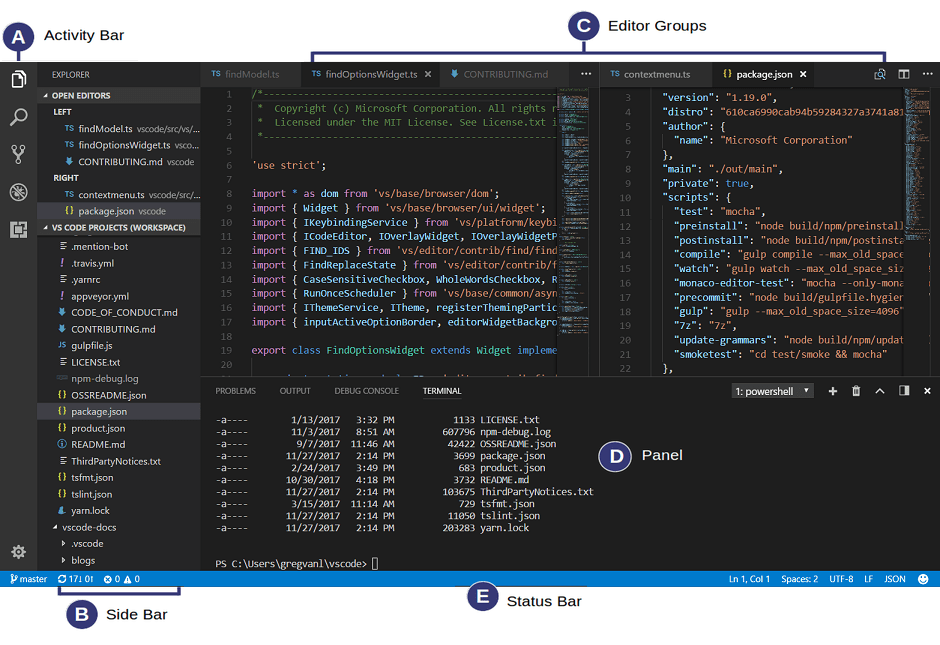
IDE Layout
| Shortcut | Action |
|---|---|
Ctrl+J / Cmd+J | Toggle Panel (terminal, output, problems) |
Ctrl+B / Cmd+B | Toggle Sidebar |
Ctrl+0 / Cmd+0 | Focus Sidebar |
Ctrl+Alt+B / Cmd+Alt+B | Toggle Secondary Sidebar |
F11 | Toggle Full Screen |
Ctrl+K Z | Toggle Zen Mode (distraction-free) |
Escape Escape | Exit Zen Mode |
View Switching
| Shortcut | View |
|---|---|
Ctrl+Shift+E / Cmd+Shift+E | Explorer |
Ctrl+Shift+X / Cmd+Shift+X | Extensions |
Ctrl+Shift+F / Cmd+Shift+F | Search |
Ctrl+Shift+D / Cmd+Shift+D | Debug |
Ctrl+Shift+G G / Cmd+Shift+G G | Git / Source Control |
Panel Tabs
| Shortcut | Tab |
|---|---|
Ctrl+Shift+M / Cmd+Shift+M | Problems |
Ctrl+Shift+Y / Cmd+Shift+Y | Debug Console |
Ctrl+Shift+U / Cmd+Shift+U | Output |
Ctrl+` / Cmd+` | Terminal |
Ctrl+Shift+V | Markdown Preview |
Editor Management
Splitting Views
Split the editor with Ctrl+\ / Cmd+\. There’s no limit on splits, but 2-3 is practical.
Switch between editor groups with Ctrl+1, Ctrl+2, Ctrl+3, or use Ctrl+PageUp/Ctrl+PageDown to cycle through tabs across groups.
Moving Files Between Groups
| Shortcut | Action |
|---|---|
Ctrl+Alt+Right | Move file to right editor group |
Ctrl+Alt+Left | Move file to left editor group |
Ctrl+W / Cmd+W | Close current tab |
Ctrl+K Ctrl+W / Cmd+K Cmd+W | Close all tabs |
Code Navigation
| Shortcut | Action |
|---|---|
Ctrl+P / Cmd+P | Quick file open |
Ctrl+T | Show all symbols in workspace |
Ctrl+Shift+O | Go to symbol in current file |
Ctrl+G | Go to line number |
F12 | Go to Definition |
Alt+F12 | Peek Definition (inline) |
Shift+F12 | Find all References |
F8 | Next error/warning |
Shift+F8 | Previous error/warning |
Editing
Selections
| Shortcut | Action |
|---|---|
Ctrl+D | Select current word (repeat to select next occurrence) |
Ctrl+L | Select current line |
Ctrl+Shift+L | Select all occurrences of current selection |
Ctrl+Shift+Alt+Down/Up | Column (box) select |
Line Operations
| Shortcut | Action |
|---|---|
Alt+Down / Alt+Up | Move line down/up |
Shift+Alt+Down / Shift+Alt+Up | Copy line down/up |
Ctrl+C (empty selection) | Copy entire line |
Ctrl+Shift+K | Delete line |
Formatting & Refactoring
| Shortcut | Action |
|---|---|
Shift+Alt+F | Format document |
Ctrl+. / Cmd+. | Quick fix / code actions |
F2 | Rename symbol |
Ctrl+Shift+R | Refactor selected code |
IntelliSense Shortcuts
| Shortcut | Action |
|---|---|
Ctrl+Space | Trigger IntelliSense |
Ctrl+K Ctrl+I / Cmd+K Cmd+I | Show hover info |
Ctrl+. / Cmd+. | Quick actions (add using, etc.) |
Terminal Productivity
| Shortcut | Action |
|---|---|
Ctrl+` | Toggle terminal |
Ctrl+Shift+5 / Cmd+Shift+5 | Split terminal |
Ctrl+Shift+ `` | Create new terminal |
Debugging Shortcuts
| Shortcut | Action |
|---|---|
F9 | Toggle breakpoint |
F5 | Start / Continue debugging |
Ctrl+F5 | Start without debugging |
Shift+F5 | Stop debugging |
F10 | Step over |
F11 | Step into |
Shift+F11 | Step out |
F6 | Pause |
Testing Shortcuts
| Shortcut | Action |
|---|---|
Alt+R Alt+A | Run all tests (Test Explorer) |
Alt+R Alt+C | Run tests in current file |
Creating Files & Folders
| Action | Shortcut |
|---|---|
| Navigate to Explorer | Ctrl+Shift+E |
| New file in folder | Alt+F Alt+N (after selecting folder) |
| New folder | Alt+F Alt+F |
| New C# class | Right-click > New C# Class |
Build Shortcut
If you’ve configured a default build task in tasks.json, press Ctrl+Shift+B to run it instantly.
Tasks
Tasks in VS Code let you run scripts and commands without leaving the editor. They’re configured in .vscode/tasks.json.
Basic Structure
1
2
3
4
{
  "version": "2.0.0",
  "tasks": []
}
Essential .NET Tasks
Here’s a complete tasks.json for a C# solution:
1
2
3
4
5
6
7
8
9
10
11
12
13
14
15
16
17
18
19
20
21
22
23
24
25
26
27
28
29
30
31
32
33
34
35
36
37
38
39
40
41
42
43
44
45
46
47
48
49
50
51
52
53
54
55
56
57
58
59
60
61
62
63
64
65
66
{
  "version": "2.0.0",
  "tasks": [
    {
      "label": "build",
      "command": "dotnet",
      "type": "process",
      "group": { "kind": "build", "isDefault": true },
      "args": [
        "build",
        "${workspaceFolder}/MySolution.sln",
        "/property:GenerateFullPaths=true",
        "/consoleloggerparameters:NoSummary"
      ],
      "problemMatcher": "$msCompile"
    },
    {
      "label": "test",
      "command": "dotnet",
      "type": "process",
      "group": { "kind": "test", "isDefault": true },
      "args": ["test", "${workspaceFolder}/MySolution.sln"],
      "problemMatcher": "$msCompile"
    },
    {
      "label": "clean",
      "command": "dotnet",
      "type": "process",
      "args": ["clean", "${workspaceFolder}/MySolution.sln"],
      "problemMatcher": "$msCompile"
    },
    {
      "label": "format",
      "command": "dotnet",
      "type": "process",
      "args": ["format"],
      "problemMatcher": "$msCompile"
    },
    {
      "label": "format verify",
      "command": "dotnet",
      "type": "process",
      "args": ["format", "--verify-no-changes"],
      "problemMatcher": "$msCompile"
    },
    {
      "label": "restore",
      "command": "dotnet",
      "type": "process",
      "args": ["restore", "${workspaceFolder}/MySolution.sln", "--force"],
      "problemMatcher": "$msCompile"
    },
    {
      "label": "publish",
      "command": "dotnet",
      "type": "process",
      "args": [
        "publish",
        "${workspaceFolder}/MySolution.sln",
        "-c", "Release",
        "-r", "linux-arm64"
      ],
      "problemMatcher": "$msCompile"
    }
  ]
}
Key Concepts
Default Build Task: Setting "group": { "kind": "build", "isDefault": true } lets you trigger the task with Ctrl+Shift+B.
Default Test Task: Setting "kind": "test", "isDefault": true makes it the default test task.
Problem Matcher: "$msCompile" tells VS Code to parse the output for errors and show them in the Problems panel (Ctrl+Shift+M).
Running Tasks
| Method | How |
|---|---|
| Default build | Ctrl+Shift+B |
| Any task | Ctrl+Shift+P → “Tasks: Run Task” |
| Terminal | Command Palette → “Terminal: Run Task” |
Putting It All Together: A Workflow
Here’s a typical development cycle using only the keyboard:
Ctrl+Shift+E— Open Explorer, navigate to fileCtrl+P— Quick-open a specific file- Edit code using snippets (
prop,ctor,cw) Ctrl+.— Fix missing usingsCtrl+Shift+B— BuildF8— Jump to any errorsF5— Start debuggingF9— Toggle breakpoints as neededF10/F11— Step through codeShift+F5— Stop debuggingAlt+R Alt+A— Run all testsCtrl+Shift+G G— Open Source Control- Type commit message →
Ctrl+Enter— Commit
Zero mouse clicks. Maximum flow.
Recommended Cheat Sheet
Print or bookmark this condensed reference:
1
2
3
4
5
6
7
8
9
10
11
12
NAVIGATION          EDITING             DEBUGGING
Ctrl+P    file      Ctrl+D    word      F5     start/continue
Ctrl+T    symbol    Alt+Up    move up   F9     breakpoint
Ctrl+G    line      Alt+Down  move dn   F10    step over
F12       go def    Shift+Alt format    F11    step into
Ctrl+.    quickfix  Ctrl+L    sel line  Sft+F5 stop

VIEWS               TASKS               TERMINAL
Ctrl+B    sidebar   Ctrl+Sft+B build    Ctrl+` toggle
Ctrl+J    panel     Alt+R A   test all  Ctrl+Sft+5 split
Ctrl+Sft+E explore  F8        next err
Ctrl+Sft+D debug    Ctrl+Sft+M problems
Series Conclusion
Over this 4-part series we’ve covered everything you need to be productive with C# in VS Code:
- Getting Started — Installation, UI fundamentals, Git integration
- Developing — Extensions, IntelliSense, code snippets, NuGet
- Debugging — Breakpoints, configurations, web apps, attach to process
- Productivity — Keyboard shortcuts, tasks, and zero-mouse workflows
VS Code with C# Dev Kit is a genuine alternative to Visual Studio — lighter, faster, cross-platform, and just as capable for day-to-day C# development. The key is investing time in learning the keyboard shortcuts. Once they become muscle memory, you’ll wonder how you ever worked without them.