C# Development with VS Code — Part 1: Getting Started
Series Overview
This is a 4-part series on productive C# development with Visual Studio Code:
- Getting Started (this article) — Installation, UI tour, Git integration, keyboard customisation
- Developing C# Apps — Extensions, editing, IntelliSense, NuGet packages
- Debugging — Breakpoints, configurations, web app debugging, attach to process
- Productivity — Keyboard shortcuts, tasks, workflow optimisation
Why VS Code for C#?
Visual Studio Code is not “Visual Studio Lite.” It’s a professional-grade, cross-platform editor that — with the right extensions — provides a first-class C# and .NET development experience on Windows, macOS, and Linux.
Since .NET became fully cross-platform and tool-independent, VS Code has emerged as the preferred editor for many .NET developers who value speed, flexibility, and keyboard-driven workflows over the heavyweight IDE experience.
Installation
Download VS Code from code.visualstudio.com. The page detects your platform and suggests the right download.
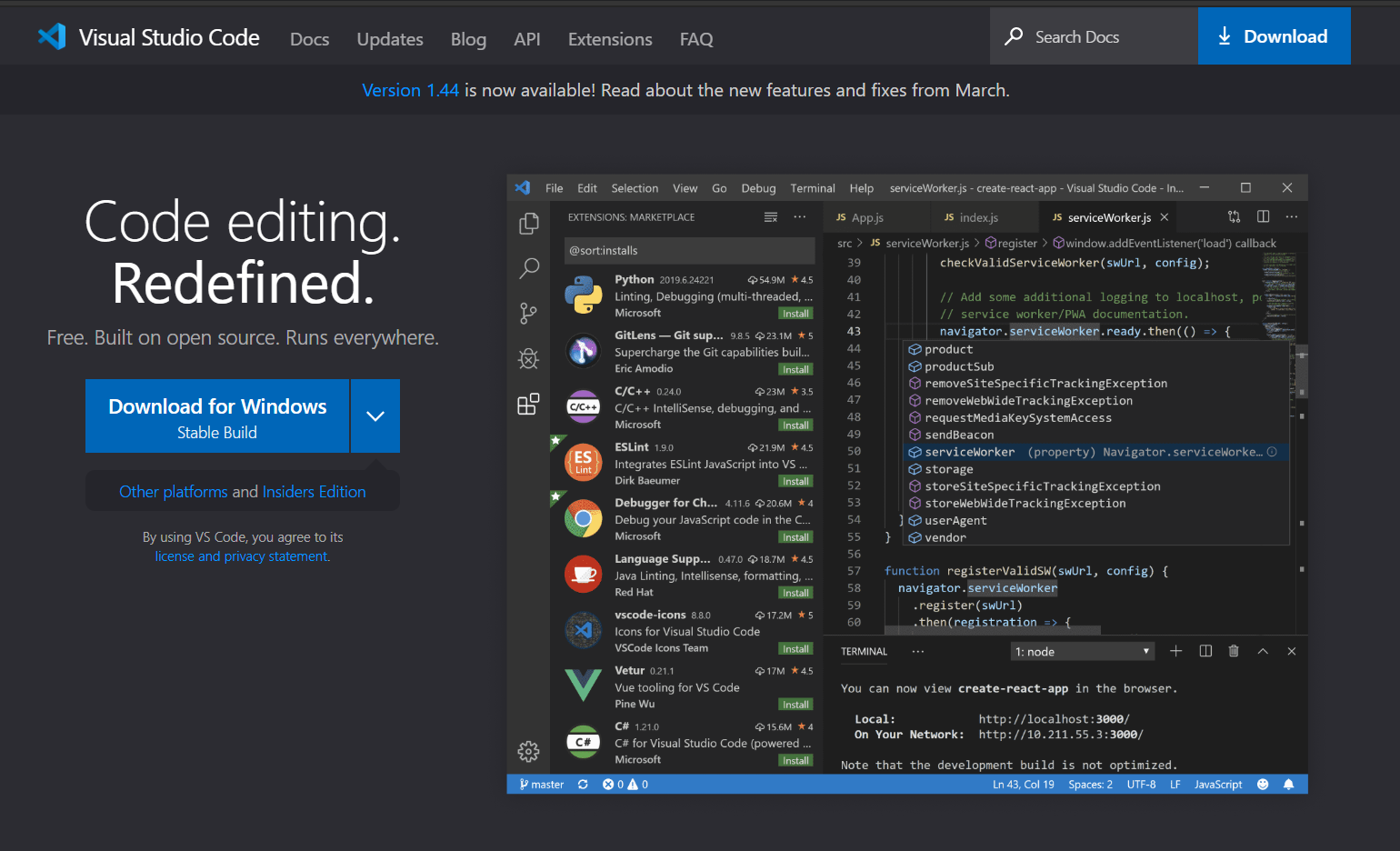
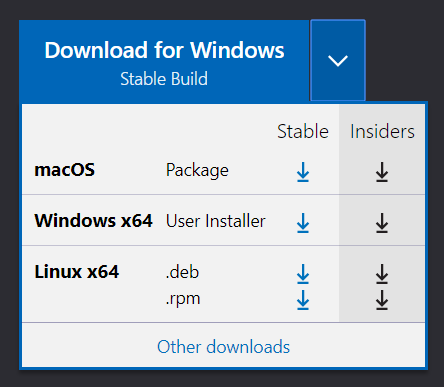
Use the Stable Build for production work. The Insiders Build has bleeding-edge features but may be unstable. Both can be installed side-by-side.
Important: During installation, add VS Code to your system PATH. This enables the code command in your terminal, which is essential for the keyboard-driven workflow.
A Brief Tour
When you first open VS Code, you’ll see:
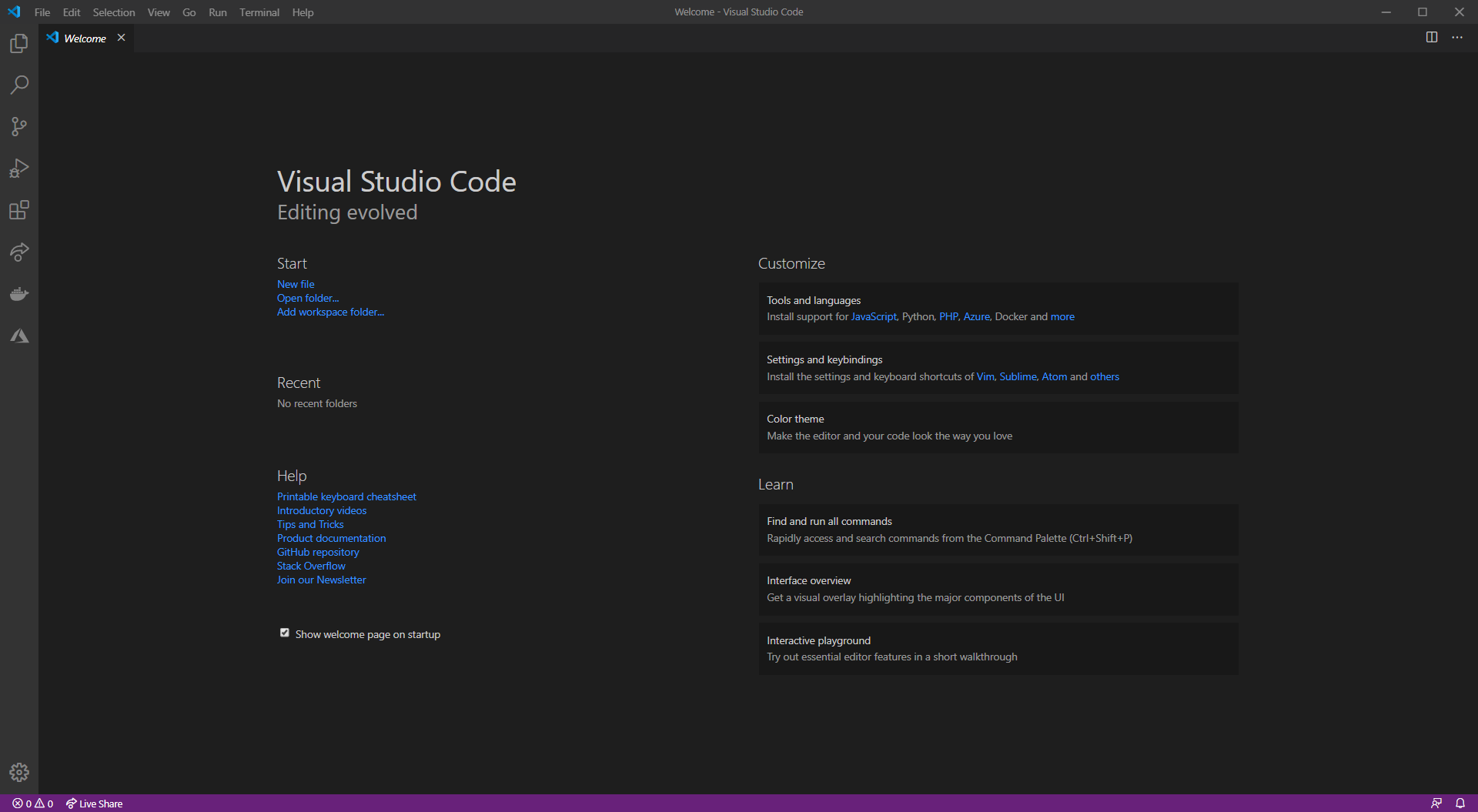
The key areas are:
| Area | Purpose | Toggle Shortcut |
|---|---|---|
| Sidebar (left) | Explorer, search, source control, extensions | Ctrl+B / Cmd+B |
| Editor (centre) | Code editing area, supports split views | Ctrl+\ / Cmd+\ |
| Terminal (bottom) | Integrated terminal | Ctrl+` |
| Command Palette | Access any command by name | Ctrl+Shift+P / Cmd+Shift+P |
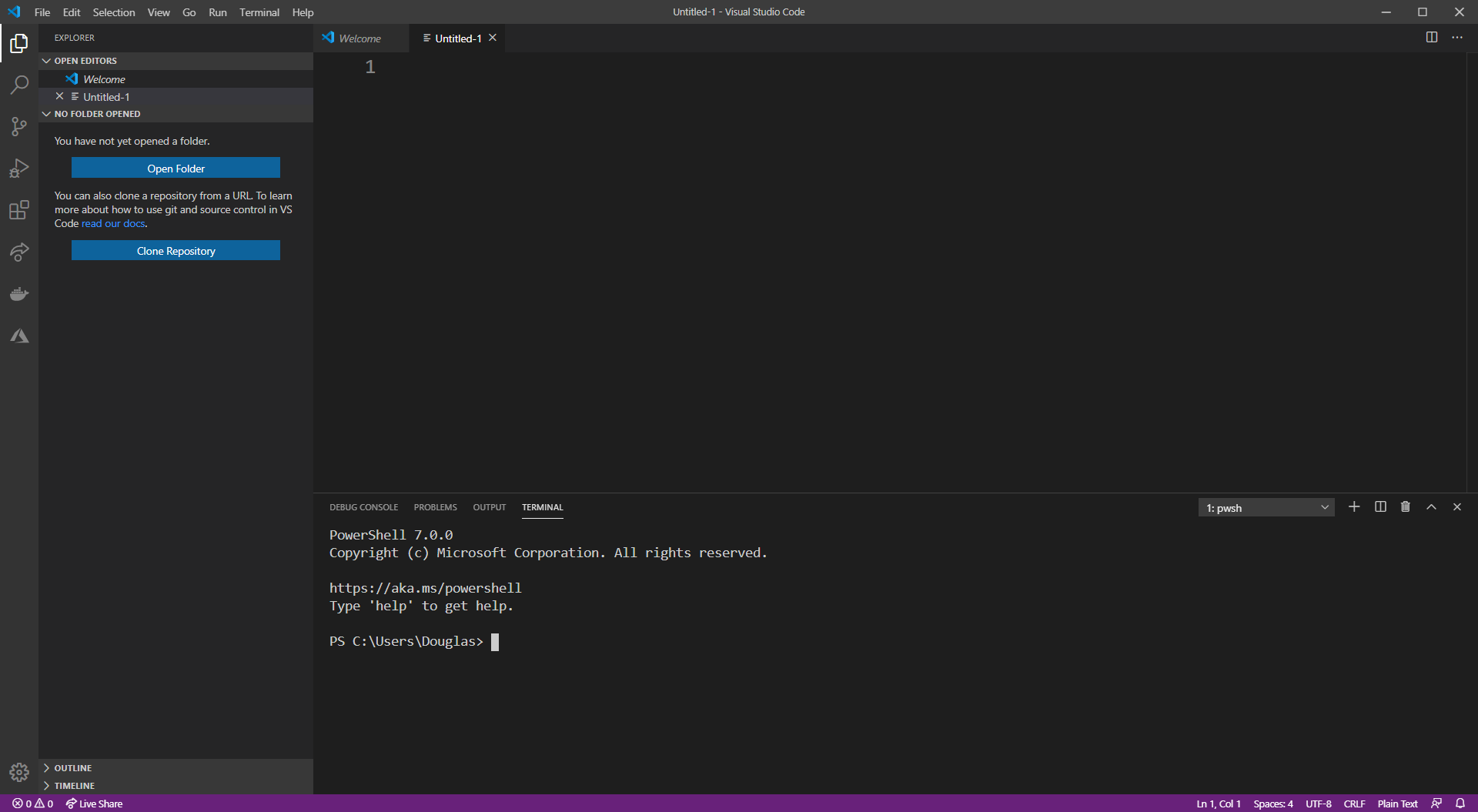
Create a new file (Ctrl+N), toggle the sidebar (Ctrl+B), and open the terminal (Ctrl+`):
The Command Palette
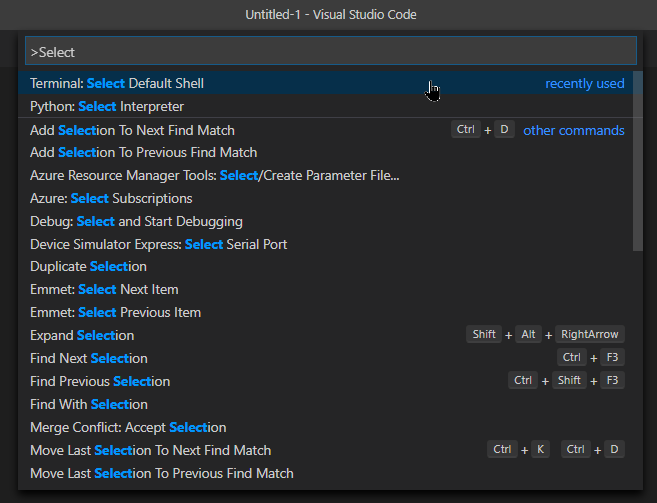
The Command Palette (Ctrl+Shift+P / Cmd+Shift+P) is the single most important feature in VS Code. Instead of navigating menus, type what you want to do:
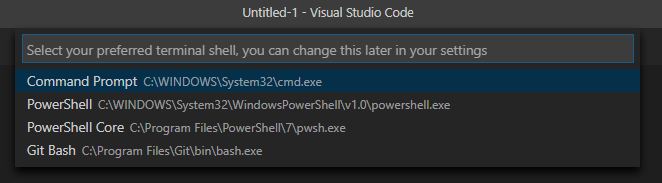
Start typing to filter commands. For example, Terminal: Select Default Profile lets you choose your preferred shell:
Quick File Open
Press Ctrl+P / Cmd+P to quickly open any file by typing part of its name — regardless of where it sits in the directory tree:
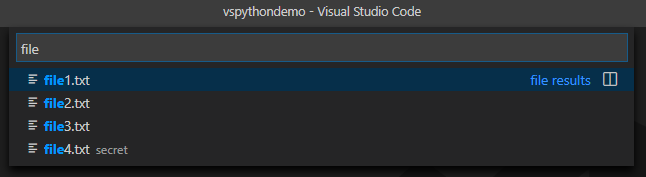
This matches across all subdirectories, so file4.txt is found even inside a nested folder. Get used to this shortcut — it will save you enormous amounts of time.
Opening Folders from the Terminal
Navigate to your project directory in the terminal and run:
1
code -r .
code— launches VS Code (requires PATH setup)-r— reuses the current window instead of opening a new one.— opens the current directory
Git Integration
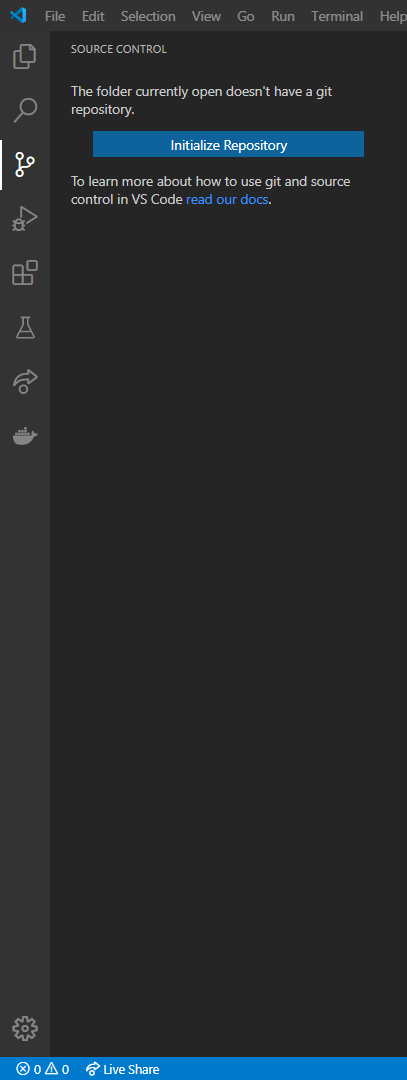
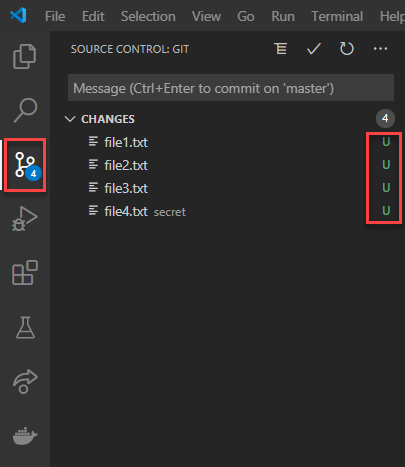
VS Code has built-in Git support. If your directory is a Git repository, the Source Control pane (Ctrl+Shift+G / Cmd+Shift+G) shows changes automatically:
Initialising a Repository
Click Initialize Repository or run git init in the terminal. The Source Control pane updates to show untracked files:
Committing Changes
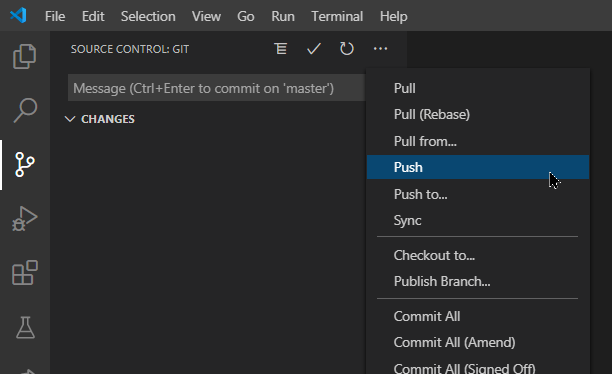
Type a commit message and press Ctrl+Enter. Accept the prompt to auto-stage changes. For pushing, pulling, branching, and more — use the ... menu:
GitLens Extension
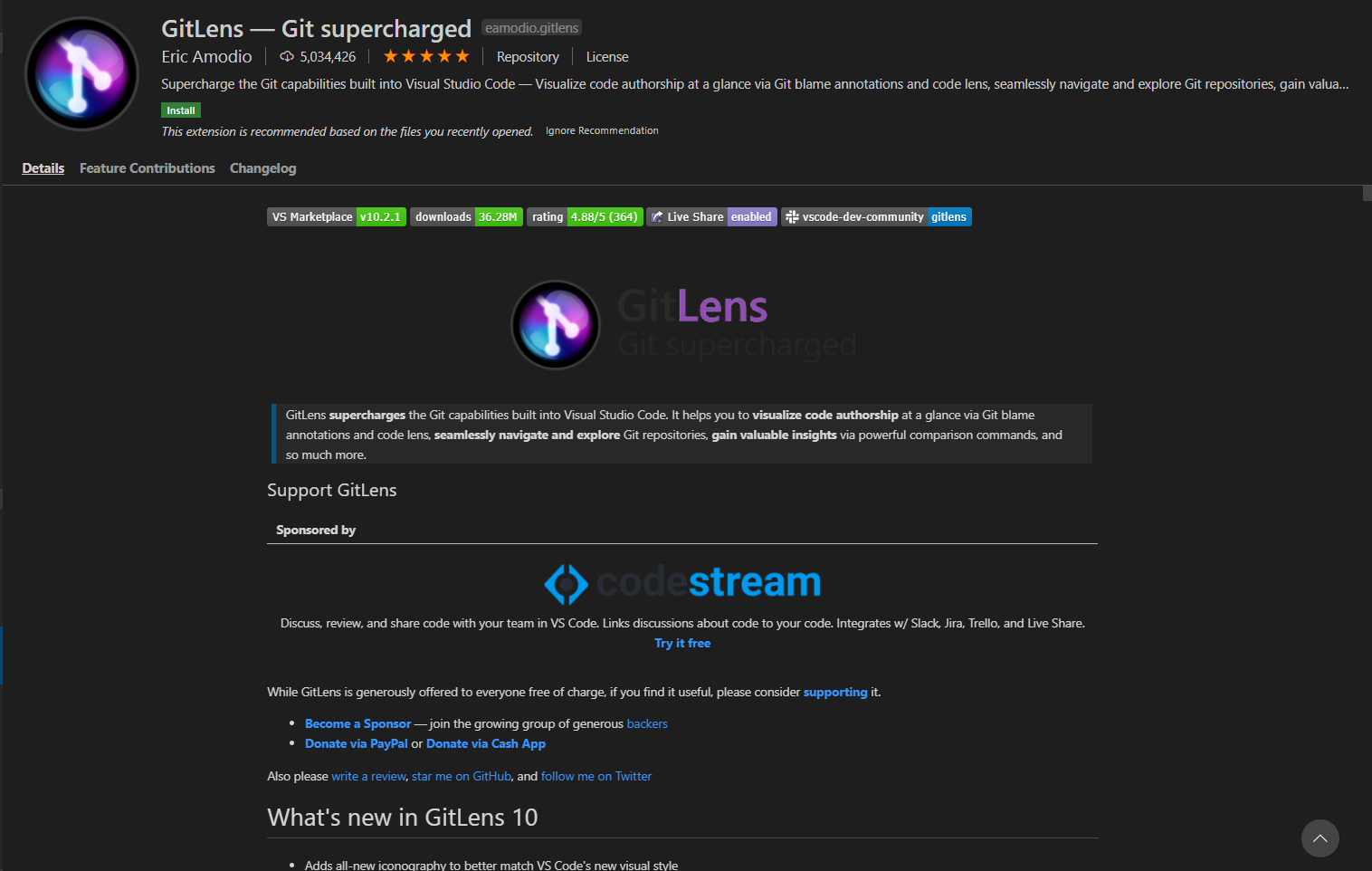
For a richer Git experience, install GitLens. It adds inline blame annotations, commit history browsing, and much more:
Custom Keyboard Shortcuts
You’ll perform some actions frequently — like pushing to Git. Instead of using the Command Palette every time, create a custom shortcut.
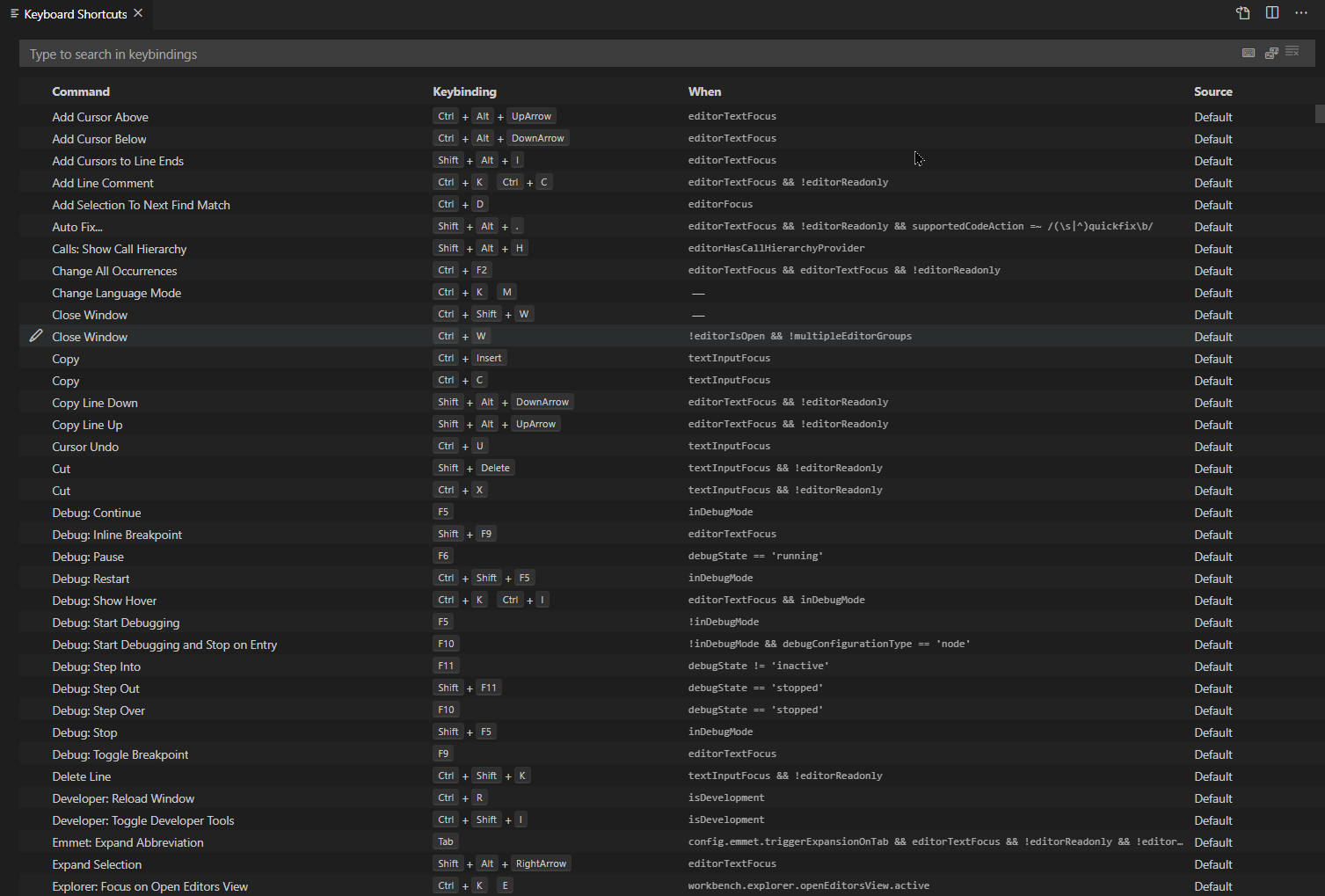
Press Ctrl+K then Ctrl+S to open Keyboard Shortcuts:
Search for the command you want to bind (e.g., Git: Push):
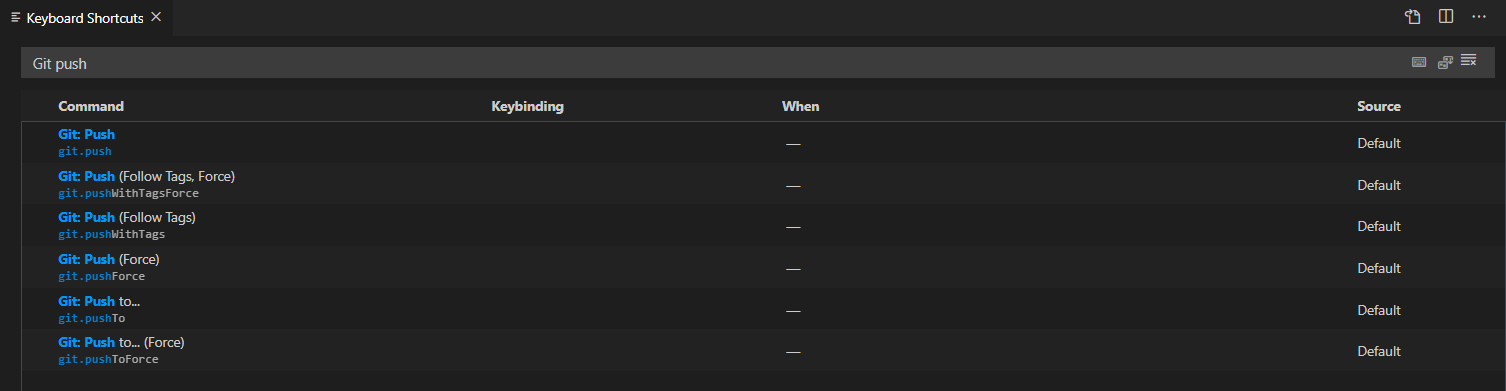
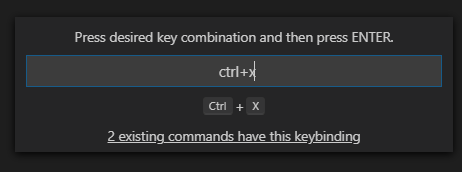
Double-click the command and press your desired key combination. VS Code warns you if the shortcut conflicts with an existing binding:
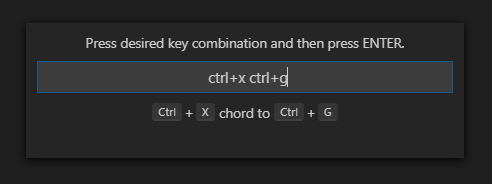
You can also use chord shortcuts — two-key sequences like Ctrl+X Ctrl+G:
Essential First-Day Shortcuts
| Shortcut | Action |
|---|---|
Ctrl+Shift+P / Cmd+Shift+P | Command Palette |
Ctrl+P / Cmd+P | Quick file open |
Ctrl+B / Cmd+B | Toggle sidebar |
Ctrl+` | Toggle terminal |
Ctrl+Shift+E / Cmd+Shift+E | Explorer pane |
Ctrl+Shift+G / Cmd+Shift+G | Source control pane |
Ctrl+Shift+X / Cmd+Shift+X | Extensions pane |
Ctrl+, / Cmd+, | Settings |
Ctrl+K Ctrl+S | Keyboard shortcuts |
What’s Next
In Part 2: Developing C# Apps, we’ll install the C# extensions, create a .NET project, and explore editing features like IntelliSense, code snippets, quick fixes, and NuGet package management.