GitHub DevOps — Part 1: Managing Multiple GitHub Accounts with SSH
Series Overview
- Multiple GitHub Accounts with SSH (this article) — Configure SSH for personal and work accounts
- Semantic Versioning with GitVersion — Automated versioning using GitFlow
- GitHub Actions Workflows — Build, version, and publish NuGet packages
The Problem
GitHub offers two ways to authenticate with repositories: HTTPS and SSH.
- HTTPS requires an access token every time you push
- SSH lets you push without re-entering credentials
SSH works perfectly with a single account. But if you have a personal GitHub account and a work account (or multiple client accounts as a freelancer), things get complicated. By default, SSH uses a single identity — so how do you tell Git which account to use for which repository?
The solution is SSH config aliases — one identity file per account, mapped to different hostnames.
Prerequisites
macOS / Linux
The ssh-agent is typically running by default. Verify:
1
ssh-add -l
If you get an error, start the agent:
1
eval "$(ssh-agent -s)"
Windows
On Windows, the ssh-agent service may be disabled by default. Check and enable it in an administrator terminal:
1
2
3
4
5
6
7
8
9
# Check status
Get-Service ssh-agent

# If not running, enable and start it
Get-Service ssh-agent | Set-Service -StartupType Automatic
Start-Service ssh-agent

# Verify
Get-Service ssh-agent
Step 1: Generate SSH Keys
You likely already have a key for your primary account (~/.ssh/id_ed25519 or ~/.ssh/id_rsa). Generate a new key for the second account:
1
ssh-keygen -t ed25519 -C "your-work-email@company.com"
Note: Use
ed25519instead ofrsa— it’s more secure and produces shorter keys. Only fall back to RSA if your system doesn’t support Ed25519.
When prompted for a file location, give it a distinct name:
1
Enter file in which to save the key (~/.ssh/id_ed25519): ~/.ssh/id_ed25519_work
Enter a passphrase (recommended — use something memorable but hard to guess).
You now have two files:
1
2
~/.ssh/id_ed25519_work       # Private key (never share this)
~/.ssh/id_ed25519_work.pub   # Public key (add to GitHub)
Step 2: Add the Public Key to GitHub
Copy your public key:
1
cat ~/.ssh/id_ed25519_work.pub
In your work GitHub account:
- Go to Settings → SSH and GPG keys
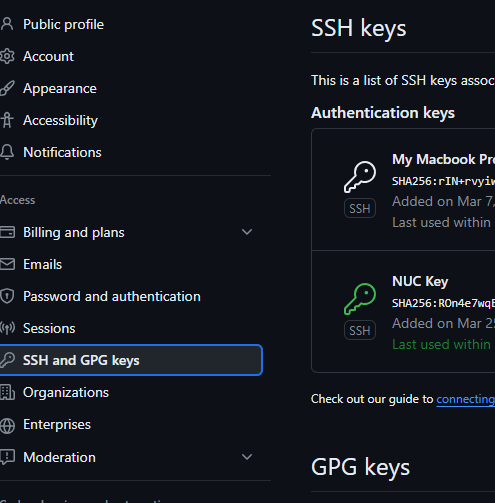
- Click New SSH key
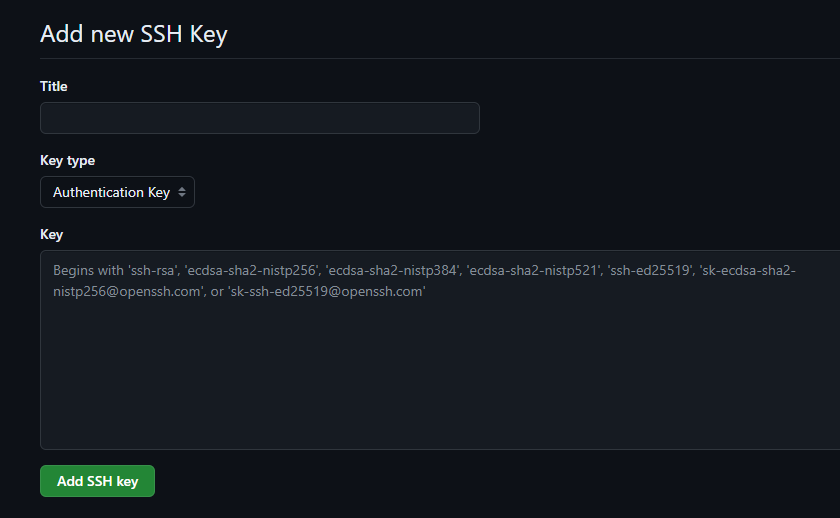
- Paste the public key content and click Add SSH key
Step 3: Register the Key with ssh-agent
1
ssh-add ~/.ssh/id_ed25519_work
You’ll be prompted for the passphrase. On success:
1
Identity added: ~/.ssh/id_ed25519_work (your-work-email@company.com)
Step 4: Configure SSH Aliases
This is the key step. Create or edit ~/.ssh/config:
1
2
3
4
5
6
7
8
9
10
11
# Default GitHub (personal account)
Host github.com
    HostName github.com
    User git
    IdentityFile ~/.ssh/id_ed25519

# Work GitHub account
Host github.com-work
    HostName github.com
    User git
    IdentityFile ~/.ssh/id_ed25519_work
The trick is the Host value. For your work account, we use github.com-work instead of github.com. SSH uses this alias to select the correct identity file, while HostName still points to the real GitHub server.
Step 5: Clone and Use Repositories
Personal Account (unchanged)
1
git clone git@github.com:your-personal/repo.git
Work Account (use the alias)
1
git clone git@github.com-work:your-org/repo.git
The only difference is github.com-work instead of github.com. SSH resolves the alias, connects to GitHub, and authenticates with the work key.
Existing Repositories
For repositories you’ve already cloned, update the remote URL:
1
2
3
4
5
# Check current remote
git remote -v

# Update to use work alias
git remote set-url origin git@github.com-work:your-org/repo.git
Step 6: Set Git User per Repository
SSH handles authentication, but you also want the correct name and email on your commits:
1
2
3
# Inside a work repository
git config user.name "Your Name"
git config user.email "your-work-email@company.com"
This sets the identity for that repository only. Your global ~/.gitconfig remains unchanged for personal projects.
Automating with Conditional Includes
If all your work repos live under a common directory (e.g., ~/work/), you can automate this in ~/.gitconfig:
1
2
[includeIf "gitdir:~/work/"]
    path = ~/.gitconfig-work
Then create ~/.gitconfig-work:
1
2
3
[user]
    name = Your Name
    email = your-work-email@company.com
Every repository under ~/work/ automatically uses the work identity.
Verifying the Setup
Test each connection:
1
2
3
4
5
6
7
# Personal account
ssh -T git@github.com
# → Hi personal-username! You've successfully authenticated...

# Work account
ssh -T git@github.com-work
# → Hi work-username! You've successfully authenticated...
Adding More Accounts
The pattern scales to any number of accounts. For a third client:
1
2
3
4
5
6
7
8
9
10
11
12
13
14
# Generate key
ssh-keygen -t ed25519 -C "email@client.com" -f ~/.ssh/id_ed25519_client

# Add to ssh-agent
ssh-add ~/.ssh/id_ed25519_client

# Add to SSH config
Host github.com-client
    HostName github.com
    User git
    IdentityFile ~/.ssh/id_ed25519_client

# Clone using the alias
git clone git@github.com-client:client-org/repo.git
Key Takeaways
- One SSH key per GitHub account — never share keys between accounts
- SSH config aliases (
github.com-work) select the right identity automatically - Use
ed25519over RSA for new keys — shorter, faster, more secure - Set
user.emailper repo or use conditional includes to keep commits attributed correctly - Test with
ssh -Tto verify each alias resolves to the expected account
What’s Next
In Part 2: Semantic Versioning with GitVersion, we’ll automate version number generation using GitVersion and the GitFlow branching strategy.